How to Install Thread via TestFlight
To use the latest version of Thread on iPhone, install it through TestFlight. The whole setup usually takes just a few minutes.
🚀 Step 1. Install TestFlight
Download TestFlight from the App Store and open it on your iPhone if it is not installed yet.
📲 Step 2. Open the Invitation Link
Download link for the app: https://testflight.apple.com/join/E4g49KsV
If this is your first time using TestFlight:
- On the first screen, choose whether to allow TestFlight notifications.
- Tap “Continue”.
- Accept the TestFlight terms of use.
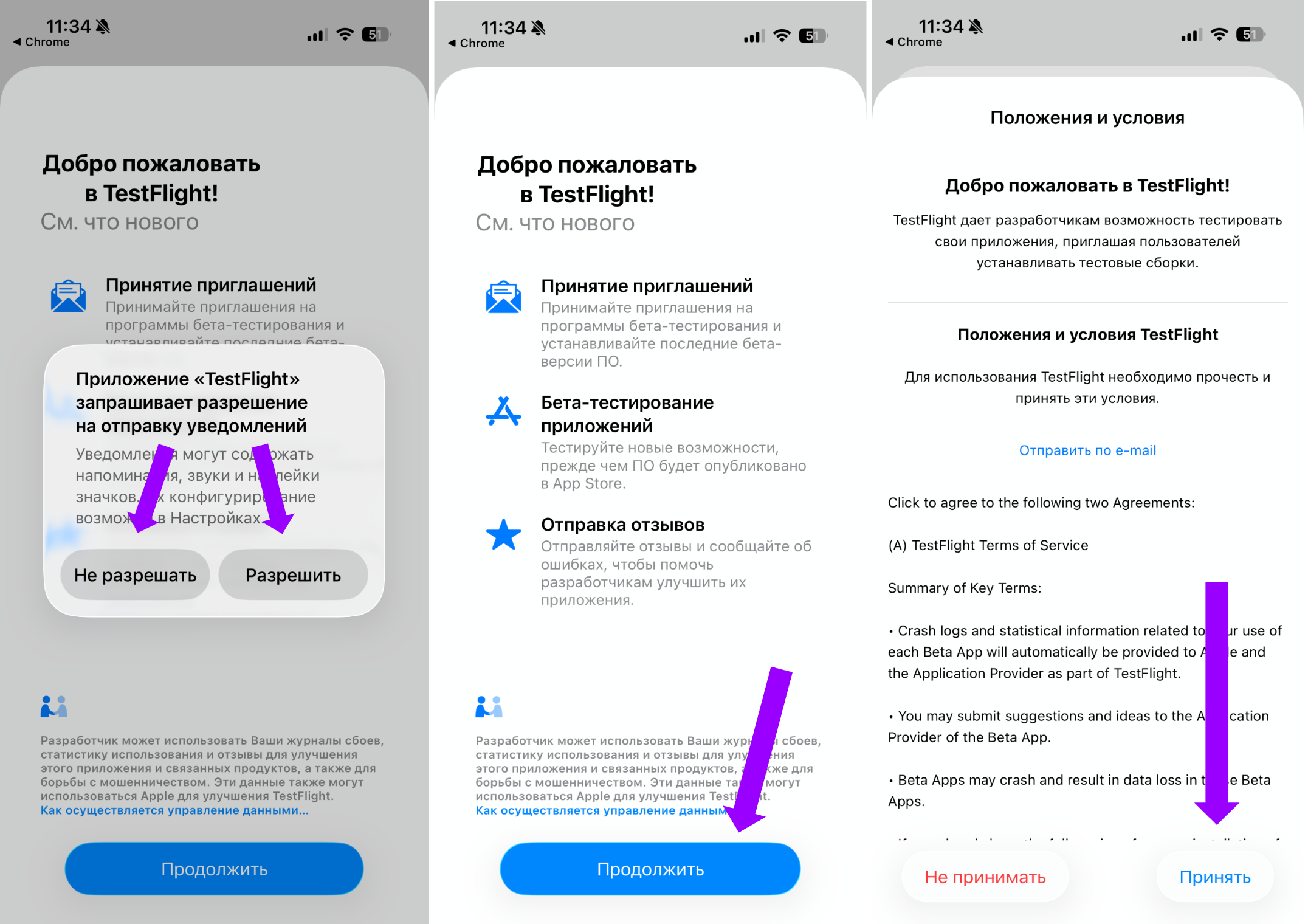
- A TestFlight page for the app “Nit: Mental Health” will open.
- Tap “Install”.
- Wait until the app appears on your iPhone.
If TestFlight asks for an access code, open the invitation link in a browser, copy the code, and paste it on the install screen.
🔐 Step 3. Turn On Automatic Updates
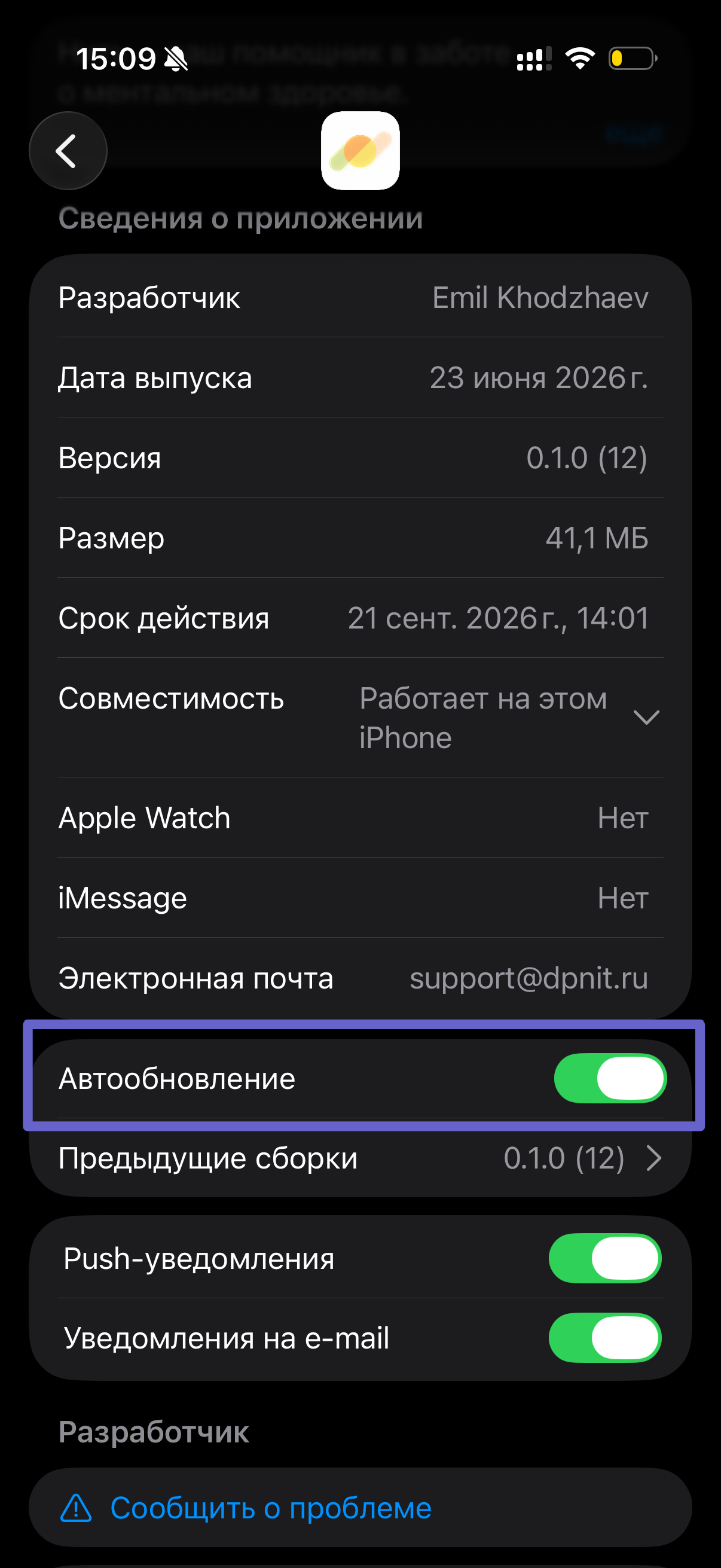
To keep the app up to date, enable “Automatic Updates”.
If you do not install updates, apps installed through TestFlight will stop working after 90 days.
🎉 The app is installed and ready to use!
❗ If Something Does Not Work
Try these steps in order:
- Fully close and reopen the Thread app.
- Check whether there is an update button in TestFlight.
- If the issue remains, reinstall the app.
💬 Support
If you get an error during installation or want to report a problem, email us at support@dpnit.ru